> For the complete documentation index, see [llms.txt](https://docs.vioso.com/llms.txt). Markdown versions of documentation pages are available by appending `.md` to page URLs; this page is available as [Markdown](https://docs.vioso.com/calibration/scanning/camera-adjustment/using-daheng-cameras-within-vioso.md).
# Using Daheng Cameras within VIOSO
Please make sure that the camera is configured and available. Refer to [Configuring Daheng Cameras](/preparation/camera/vioso-camera-kits/configuring-daheng-cameras.md) for instructions to setup such camerss
Once the camera is configured, “Galaxy Viewer” software. must be closed.
{% hint style="info" %}
It is not possible to access the camera within VIOSO Core as long as the camera is opened in “Galaxy Viewer” or other software like "AMCap"!
{% endhint %}
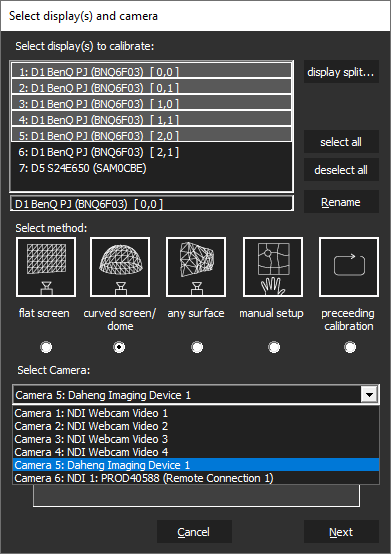
The camera will show up as “DirectShow” device with a device name like “Daheng Imaging Device 1” or with its serial number when installed together with the MVS drivers.
All parameters are available in a large parameter tree, that can be filtered by categories and complexity (“Guru”, “Beginner”…). Though all parameters seem accessible, it is not recommended to do much changes here, because of a bad user experience:
* It is hard to browse through the vast parameter tree
* Not all parameters can be set at runime.
For “last minute” changes, though, we recommend to concentrate on these parameters:
* Acquisition Control: Manipulate here the “Exposure time” to adjust the camera sensitivity to the test pattern displayed by the projectors
* Analog Control: Manipulate the “Blacklevel”, “Gamma” and “Gain” values, but only as a last resort.
**Notes about Multi-Camera usage:**
* In Galaxy Viewer, when switching between cameras views, stop acquisition on the previous first or you will have bandwidth error warnings.
* In VIOSO MRD window (Model View Control) you might not see the camera full name in the dropdown menu. To check if it’s the right camera assigned, open the MRD file you created in a text editor. It is in XML format where `defCamName` parameter refers to the camera that calibrated the selected compound.
* Optional tip: It can be helpful to fix camera custom names in GxGigEIPConfig (see above ). They will appear in VIOSO under “adjust camera > Options > Camera info”
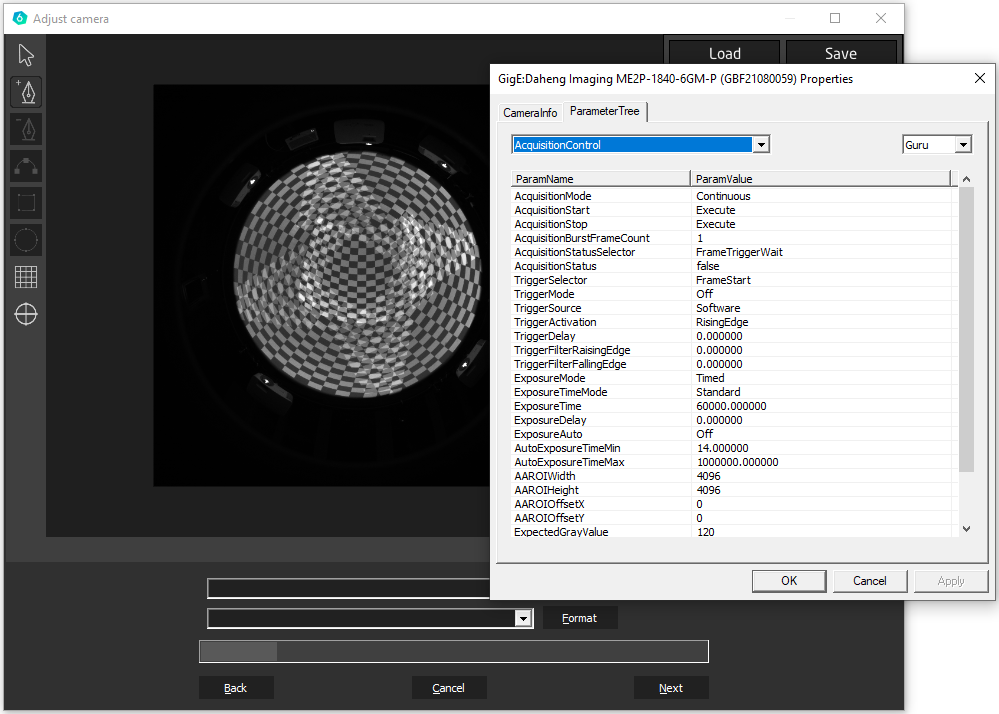
 All parameters are available in a large parameter tree, that can be filtered by categories and complexity (“Guru”, “Beginner”…). Though all parameters seem accessible, it is not recommended to do much changes here, because of a bad user experience: