> For the complete documentation index, see [llms.txt](https://docs.vioso.com/llms.txt). Markdown versions of documentation pages are available by appending `.md` to page URLs; this page is available as [Markdown](https://docs.vioso.com/integration/projectors.md).
# Projectors
VIOSO software can export warp and blend files in the Barco pulse format. It consists of an **XML file (warping grid)** and a **PNJ (blend image)** that are automatically generated for each calibrated projector.
## Project Mode
1. Create a new project with the “**Pulse**” template\

2. In the Design step, replace the name of each projector with its **IP address**\

3. Proceed with the regular calibration steps, and at the end your export button will automatically transfer the warp and blend files over network to the projectors.
## Free mode
### Manual export – upload
From the main VIOSO window, go to `File > Export Mapping`\
Choose the format Barco Pulse from the list and export your file.
Next, you can upload the files using the Barco web interface or projector toolset.
### Scripted export – upload
You can use VIOSO export scripts to automatically generate the files and transfer them on the network. Optionally you can also add conversion tasks and temporary files. Example:
```
```
## Troubleshooting
1\. If you have issues with the automatic transfer of the files, check the network connection of the calibration machine to the projectors in the browser. e.g: `http://192.168.1.132:9999`
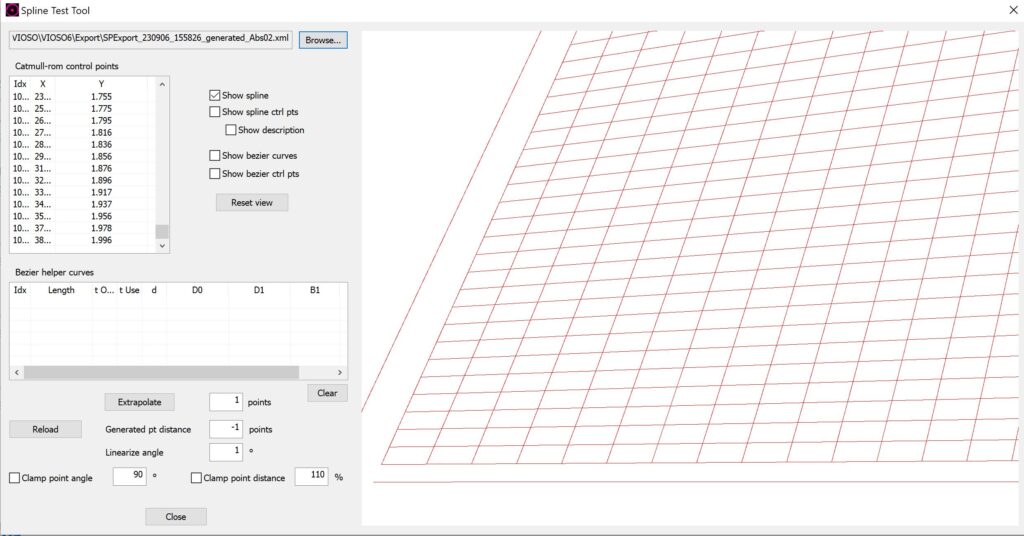
2\. You can debug the exported geometry from the XML file with the SplineTestTool. You can find it in your install folder `\VIOSO6\Shared tools\SplineTestTool.exe`
 3\. If you’re using an AMD threadripper CPU, you might encounter save issues. To solve this, go to Options / Settings / File Options and untick the checkbox “save compressed”