> For the complete documentation index, see [llms.txt](https://docs.vioso.com/llms.txt). Markdown versions of documentation pages are available by appending `.md` to page URLs; this page is available as [Markdown](https://docs.vioso.com/preparation/network/network-settings-in-vioso.md).
# Network settings in VIOSO
## Settings for multiclient usage
These settings apply when multiple instances of VIOSO are connected via network to execute scalable calibrations.
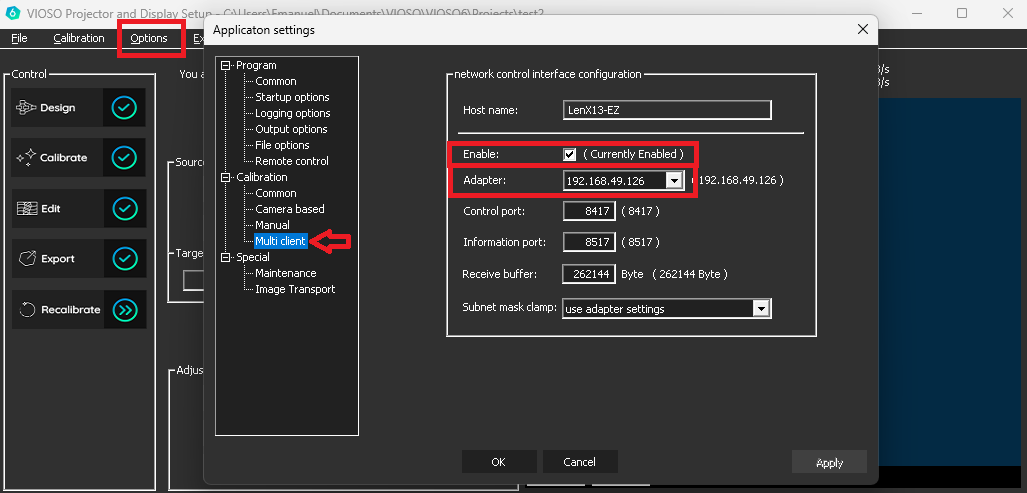
Access from `Menu > Options > Settings > Multi client`:
### Common Settings
These settings should be checked and adjusted whenever a new configuration of PCs is made, or if changes in the network happened.
* Check "Enable" to enable multiclient functionality
* Adapter: Select the network interface - in case you have multiple NICs on your system
{% hint style="info" %}
All VIOSO 6 instances must use the adaptor from the same network.\
E.g.: PC1: 192.168.49.10, PC2: 192.168.49.11, etc\
\
This will not work:\
PC1: 192.168.**0**.10 , PC2: 192.168.**20**.11
{% endhint %}
### Other settings
These settings should be be left as is, so do change them only if there are issues within the network:
* Control Port and Information Port: These ports are required for the communication bewtween the VIOSO instances. Do not change unless they conflict with other applications on the same PCs.
Defaults ports as of VIOSO 6.0):
* Control: `8417`
* Information: `8517`
{% hint style="info" %}
Changes of `Control Port` and `Information Port` must be done on **all PCs** in the same way!
{% endhint %}
* Receive Buffer: Change only if there are issues due to the networking hardware
* Subnet mask clamp: Change only if required by the network adress scheme
## Settings for Remote Control
These settings apply to remote control VIOSO by external applications.
Access from `Menu > Options > Settings > Remote Control`:
The TCP and UDP interfaces are enabled by default, listening all network adapters.
* Change the adapter from 0.0.0.0 (all adapters) to a specific adapter to restrict the remote control functionality to this network interface
* Change the ports in case of issues or conflicts with other applications.
Defaults ports as of VIOSO 6.0):
* TCP: `8317`
* UDP: `817`