> For the complete documentation index, see [llms.txt](https://docs.vioso.com/llms.txt). Markdown versions of documentation pages are available by appending `.md` to page URLs; this page is available as [Markdown](https://docs.vioso.com/start/project-mode/3d-model-view.md).
# 3D Model View
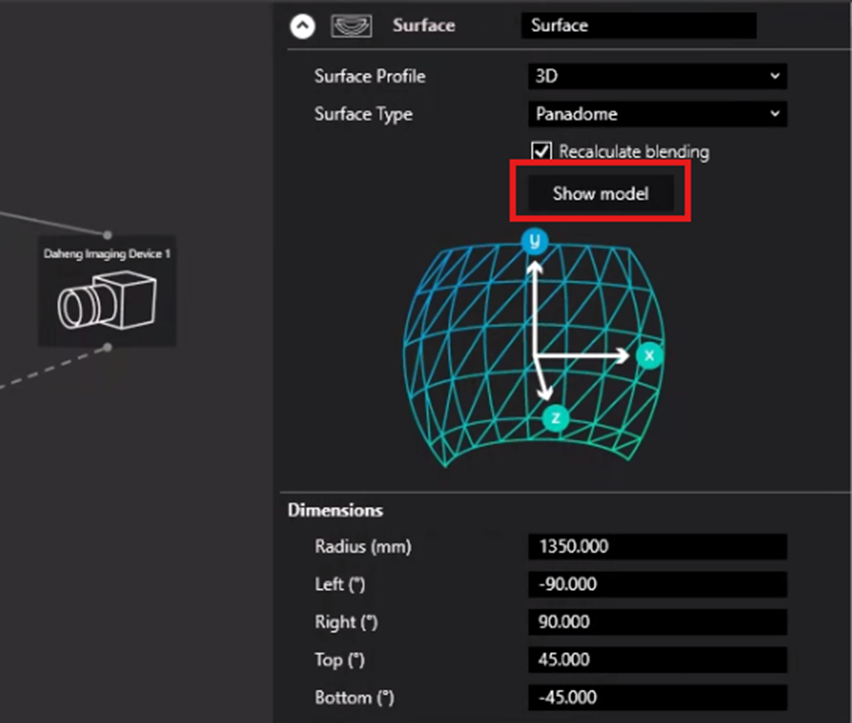
Once the 3D model for the screen is created or imported, you can open it in the viewer by clicking the Show model button in the Surface node Inspector panel within the Designer:
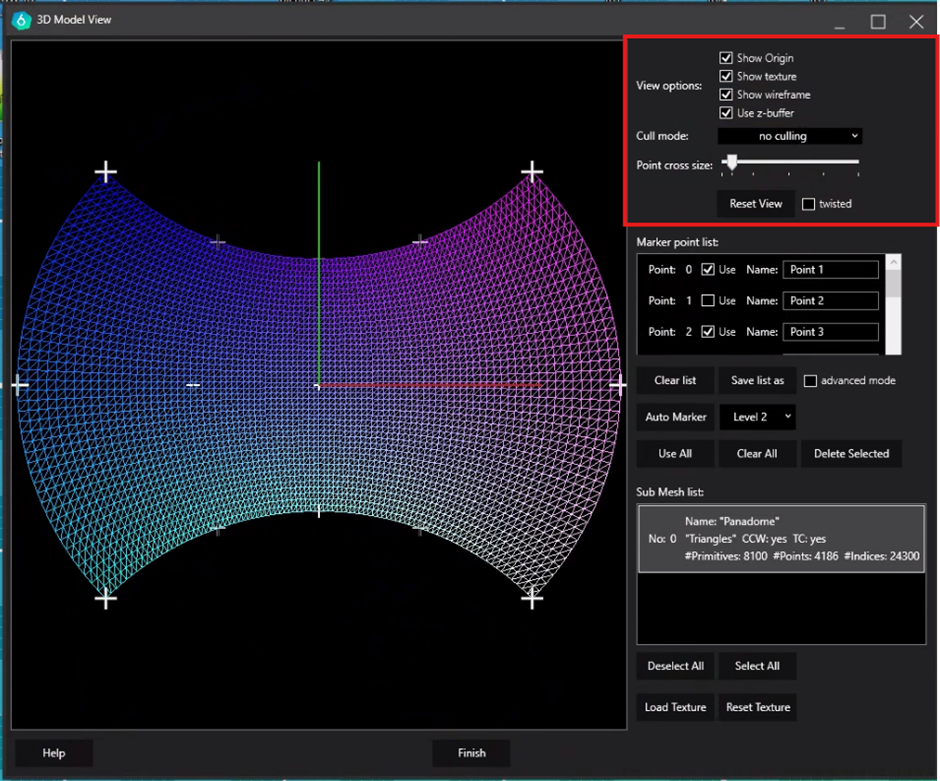
This opens the 3D model viewer, which also serves as the marker generation tool. The top section of the control panel allows you to manage the 3D model view:
#### View Options
* **Show Origin**: Toggles the visibility of the global coordinate system
* **Show texture**: Displays the assigned image or video texture on the model's surface. When disabled, the model displays its raw material color.
* **Show wireframe:** Overlays the underlying polygonal mesh (triangles or quads) onto the model surface.
* **Use z-buffer:** Enables depth testing. When active, objects further from the camera are correctly occluded by closer ones to prevent rendering artifacts.
***
#### Rendering & Geometry
* **Cull mode**: Determines which side of a polygon is rendered based on the vertex winding order:
* *Clockwise*: Hides faces where vertices are ordered clockwise from the camera's perspective.
* *Counter-clockwise*: Hides faces with counter-clockwise winding.
* *None*: Renders both sides of the polygon (double-sided).
* **Point cross size**: A slider to adjust the visual scale of the markers (cross-hairs)
* **twisted**: A toggle that modifies the behavior of the Reset View button.
* When *unchecked*, "Reset View" returns the camera to the standard default orientation.
* When *checked*, "Reset View" resets the camera to a perspective where the X and Z axes are inverted, flipping the viewpoint to the opposite side of the model.
* **Reset View**: Instantly re-aligns the viewport camera to the orientation determined by the current state of the twisted checkbox.